10 Power Tips for Claude Code Users
Here are ten hard-earned lessons from building apps with Claude Code that will help you get the most out of your sessions.

I’ve spent the last year building applications with Claude Code - from Confabulator to our entire Build School platform with a custom-built, Udemy-like LMS. Along the way, I’ve learned what works and how to get better results while keeping token costs to a minimum.
Regardless of your current level of proficiency with CC you’ll gain value by incorporating these suggestions into your current workflow.
1. Begin Every Feature with Plan Mode
Always start in Plan Mode.
Resist the temptation to dive directly into implementation. You can give CC the exact same prompt but by starting first in plan mode and having it think through things up front it will give you a far better result every time by having to propose and defend a plan up front.
This slightly-delayed gratification vs. rushing into implementation is well-worth the 2min wait.
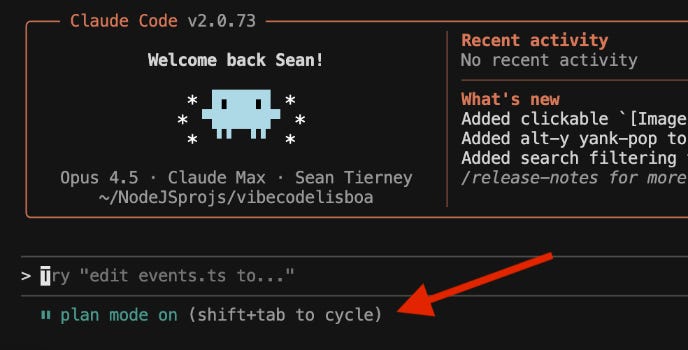
You engage plan mode by hitting “Shift Tab” from the CC command line and you’ll know you’re in Plan Mode when you see
2. Know When to Use File Scaffolding vs. GitHub Issues
Both preserve context, but they serve different purposes:
Create a .md scaffolding file when:
The context is something that will be referenced repeatedly in the future
It’s a distilled representation of complexity that saves CC from having to ingest the entire codebase to gain specific understanding
It’s a living document that will evolve and there’s benefit to versioning it in source control
Create a GitHub issue when:
It’s related to a solvable issue and will be obviated once it’s resolved
You want to associate this context with a specific feature or bug
The task is discrete and can be closed when complete
The two are not mutually-exclusive. It’s totally fine to save as a GitHub issue for the “what” and a scaffolding doc for the “how” but remember that storing outdated context confuses the LLM so you’ll want to be sure and prune context docs as they diverge from the reality of the codebase. I like to put scaffolding.md files in /guidance directory and /temp subdirectory if they’re transient or /docs subdir if they’re permanent.
3. Master Context Management
Three slash commands that you need to know:
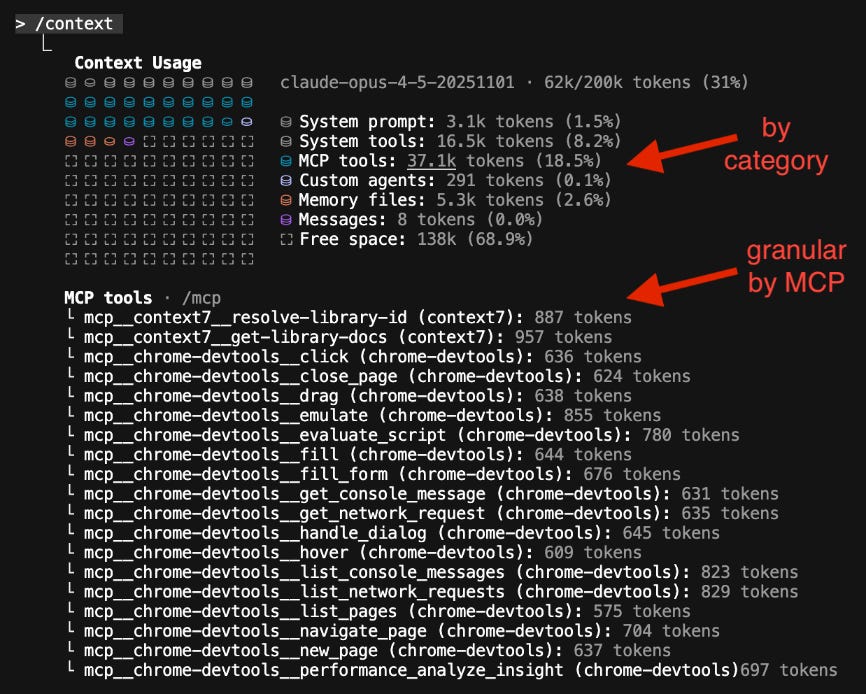
/context - A visual representation of what Claude currently has loaded. It’s an eye-opener to see how your context window is currently allocated. This gives you the breakdown by what’s consuming most context by category and as well a granular view of which particular MCP’s are eating up context.
/clear - Nuclear option. Wipe everything and start fresh. Use liberally between features.
/resume - Pick up where you left off. Essential for multi-session work or when your IDE crashes and you lose context in the middle of developing a feature.
The mental model: Claude’s context window is like expensive real estate: you want to get the most out of every square foot and protect it at all costs. Every unnecessary file loaded is stealing space from your actual work.
4. Token Budget Management
If you’re using a Claude Pro or Claude Max subscription your usage quota governs how long you can work before you get temporarily frozen. If you’re on the API-based billing you’re paying a la carte so this directly affects your total bill:
Use CLIs instead of MCPs whenever possible. The GitHub CLI is more token-efficient than the GitHub MCP. Same with Vercel, Turso, Stripe and most other services. To the extent you can you should be using CLI’s instead of MCP’s when a comparable CLI solution exists.
Disable auto-compact. It sounds helpful, but it’s just eating up about 20% of your buffer. Better to manually manage context than let the system compress your important context away.
Create context summary docs. Instead of letting Claude read your entire filesystem every time, maintain a PROJECT_CONTEXT.md that summarizes the current state. Point Claude there first and it saves gobs of tokens because it doesn’t have to ingest the entire file stystem to understand the codebase.
Clear context after each feature. Don’t let the cruft accumulate. Finished a feature? /clear before starting the next one.
Monitor your usage: Run npx ccusage@latest to see token consumption by day. Pro tip: you can update your CLAUDE.md file with instructions to calculate the total token expenditure by feature and log that to the github issue when you close out each issue. NOTE: the dollar figures shown by this command are the a la carte API-based usage pricing. If you’re on a subscription this is not what you’re actually paying (good way to value your subscription and see if you’re getting your money’s worth).

5. Give Maximum Autonomy with MCPs and CLIs
The goal is disinter-mediate the interaction whenever possible and give Claude Code agency to operate on your behalf across systems without you being the relay middleman constantly.
Here’s my stack:
MCPs I use:
chrome-devtools - Let CC open browser windows, inspect elements, debug until acceptance criteria are met
context7 - Live documentation lookup without leaving the session
n8n - Workflow automation integration
CLIs I configure:
Turso - Database operations
GitHub - Repository management
Vercel - Deployment and logs
Stripe - Manage ecommerce, check logs
The magic is when Claude can: check production logs → identify the bug → fix the code → verify the fix → deploy and all without you having to be involved in each step.
6. Pre-Authorize Actions to Avoid Interruptions
Nothing kills flow like Claude stopping every 30 seconds to ask “Can I run this command?”
Option 1: Configure .claude/permissions.json Define what actions Claude can take without asking. This gives granular control over which commands, which directories, which operations are pre-approved.
Option 2: Launch with claude --dangerously-skip-permissions Full autonomy mode. Claude does whatever it thinks is right (equivalent to “Yolo Mode” in Cursor).
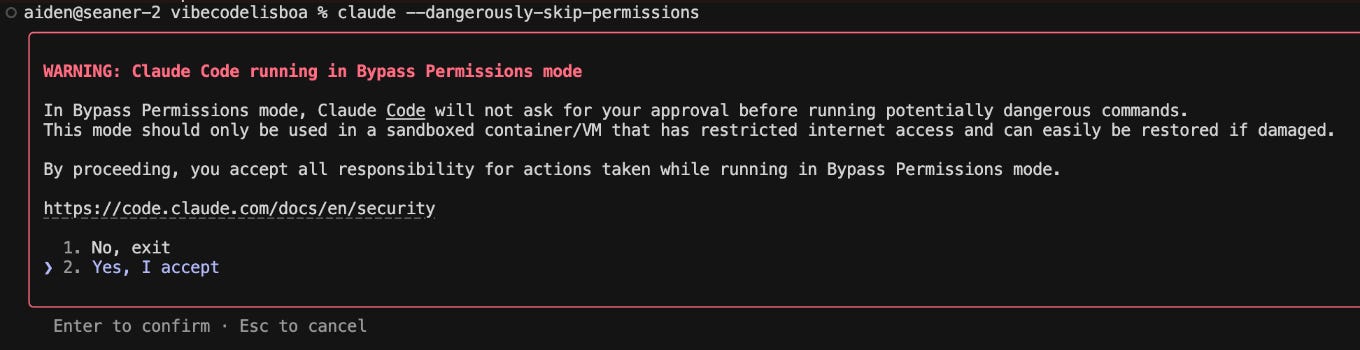
Option 3: Launch with claude --permission-mode acceptEdits A slightly dialed-back version of the above where it doesn’t have full permissions but auto-accepts many of the approval steps on its own.
⚠️ Warning: Giving it full autonomy carries risk. Only use with repos you trust completely and running in sandboxed environments. A malicious repo could use prompt injection to exfiltrate data or install malware. This risk can be mitigated by sandboxing your CC instance (more on this at the end).
7. Write an Optimal Claude.md
Your CLAUDE.md file is a master prompt that runs on every interaction. This is a powerful file because it includes directives that shape everything in the project.
What belongs in CLAUDE.md:
Project architecture overview
Key conventions and patterns
Common gotchas unique to this codebase
Links to important docs and supplementary guides
Your preferred coding style
Progressive disclosure: Don’t cram everything into the top level. Use includes or references to deeper docs that Claude can pull in as needed. This “just-in-time context” is called “progressive disclosure” and is another huge context-saving tip.
Claude.md vs. .clauderules:
CLAUDE.md = project-specific context
.clauderules = personal preferences that apply across all projects
Keep them distinct. Your rules travel with you. Project context stays with the project.
8. Escalate Thinking When Needed
Claude has different thinking modes. Use them strategically:
Default - Fine for straightforward tasks
“Think” - Pause and reason before acting
“Think hard” - More deliberate analysis
“Ultrathink” - Maximum reasoning depth for complex problems
Hat tip to my friend Marc Johnson for introducing me to these modes.
Pro Tip: The PAL MCP server lets you create a “consensus advisory board” - you can have a little virtual round table of Grok, Claude, OpenAI, Gemini, Ollama and other models debating architectural approaches. Five heads are better than one!
9. Run Claude Code Inside Cursor
Best of both worlds.
Cursor gives you the IDE experience: file navigation, syntax highlighting, visual diffs, easy manual edits.
Claude Code gives you the brain: superior reasoning, better context management, more capable tool use.
Run CC as your terminal within Cursor. You get Cursor’s interface with Claude’s intelligence. The combination is more powerful than either alone.
10. Extract Learnings Across Projects
As you develop and resolve bugs, learn key findings and make progress you should seek to extract and distill key learnings into markdown files that can be portable across projects.
Maintain two files that travel with you:
dev-culture.md - Your development philosophy. Patterns you prefer. Conventions that work for you. The “way you like to work” that Claude should respect.
mistake-patterns.md - Things that have gone wrong before. Common pitfalls Claude falls into. Errors you’ve corrected multiple times. Next time, Claude can avoid them before they happen.
These become institutional memory. It’s like the raw nutrients extracted from the fruits of your labor and converted into a portable serum that you can inject into future projects. Instead of the typical downward spiral of entropy that people report in working with these AI’s you get a positive upward spiral of increasing effectiveness with this “bottled judgement.” This is the grail as your system becomes like a team that’s getting more capable over time and more adapted to how you work.
BONUS: The Security Sandbox
Claude Code can do real damage if it goes off the rails. You hear stories like this one where CC decides to delete one’s entire home directory. You also have supply chain attacks that can target the MCP’s and dependency libraries and wreak havoc, not to mention prompt injection attacks where it can sabotage your system purely by reading malicious instructions in the repo code.
My setup on Mac:
Create a separate user account just for Claude Code work
Use Fast User Switching to move between accounts
Don’t log into sensitive accounts (email, banking, cloud consoles) from the sandboxed user account
Keep your sensitive data under your main admin account and never run CC there
This constrains the blast radius. If Claude goes rogue and starts deleting things, it can only delete things that user can access.
More friction for working? Yes. But I’d rather introduce a little friction and have peace of mind that the worst CC can do is nuke the AI user account and file system rather than access files in my main account and/or impersonate me and take over browser sessions where I’m logged into sensitive accounts.
The Overarching Lesson
All of these tips share a common theme: learn to act like the playmaker, not the quarterback.
Your job is to:
Set up the environment for success
Provide the right context at the right time
Give Claude the autonomy to work
Capture key learnings for next time to shape things
The better you get at being the play maker, the better Claude can be at winning games on the field as your quarterback.
What tips have you discovered? Reply to this email—I’m always looking to improve my workflow.
About Build School: I teach non-technical founders to ship production MVPs in 30 days using AI coding tools. If you want hands-on guidance applying these techniques, check out our next cohort or take my self-serve video course and work at your own pace.
This was great thanks for the tips ✌🏾